 Chala Gist
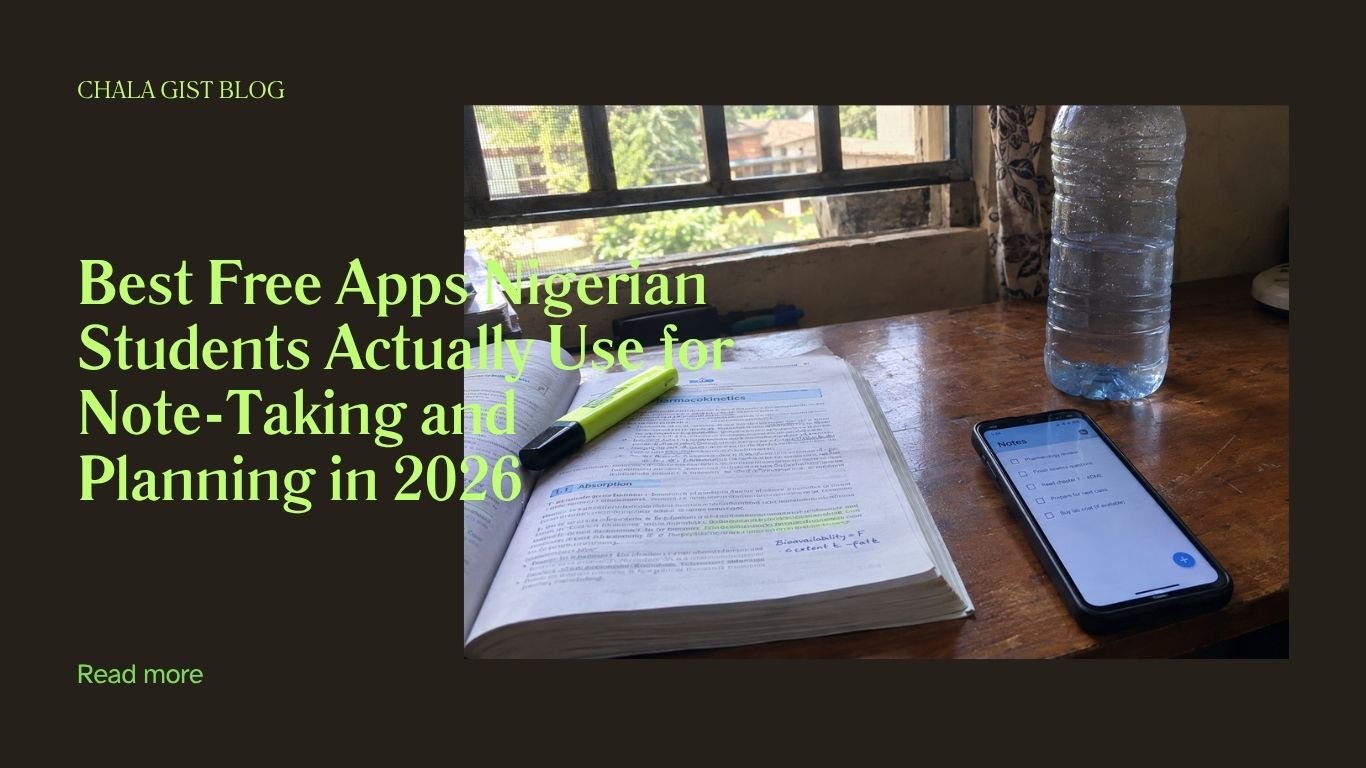
Best Free Apps Nigerian Students Actually Use in 2026
I used to be the girl with four different notebooks — one for lectures, one for “important” things I swore I’d revisit, one that just had random assignment deadlines scribbled in the corners, and one I genuinely cannot remember the purpose of anymore. As a 300 level Pharmacy student here at the University of Nigeria, Nsukka, my course load is heavy enough without also losing my own notes inside my own notes. Somewhere between a missed Pharmacognosy practical and a lecture note I never found again, I decided to stop pretending paper was working for me and actually commit to doing this digitally.
The problem is, “just download a productivity app” is easy advice from people who don’t have to think about data costs, phone storage, or whether an app will even open properly when NEPA has taken light and you’re on 8% battery. So this isn’t a generic “best apps of 2026” list copied from some American college blog. This is what I actually tested, what survived on my phone after the first week, and what other students here genuinely still use months later — not just downloaded once out of curiosity and abandoned.
I’ll also touch on something worth knowing about right now: there’s a real shift happening in how students plan and take notes in 2026, and it’s not just “use Notion.” It’s a mix of aesthetic digital planning becoming its own kind of self-expression, and a newer wave of AI tools that build study plans from your own notes instead of generic answers. I’ll explain where that’s genuinely useful and where it’s just noise.
What I Actually Looked For Before Trusting Any App
Before recommending anything here, every app had to pass a few realistic tests, because “it’s popular abroad” doesn’t mean it works for a Nigerian student’s actual daily reality:
- Does it work well on low or inconsistent data? Not everyone can afford to be constantly online.
- Is the app itself light on storage? A lot of us are working with phones that have 32GB or 64GB total, shared between apps, photos, and course PDFs.
- Does the free plan actually give enough to be useful, or does it lock the important features behind a paywall after week one?
- Does it survive a battery-saving, data-restricted, multitasking-heavy Android phone, not just a flagship iPhone with unlimited Wi-Fi?
With that filter, here’s what actually held up.
For Typed Notes: Google Keep and Microsoft OneNote
Google Keep is the app I recommend first to anyone starting out, mainly because almost everyone already has a Google account, so there’s zero setup stress. It’s built for short, quick notes rather than long essays — perfect for jotting down a lecturer’s sudden “this will be on the exam” comment, a quick to-do, or a reminder before you forget it mid-lecture. It’s genuinely light on data and storage, syncs automatically, and works fine even on an average Android phone.
Microsoft OneNote is the step up when you need actual organised notebooks — separate sections for each course, typed or even handwritten notes if your phone supports a stylus, and the ability to drop in images of your lecturer’s slides directly into your notes. It has a generous free tier, and if your school already uses Microsoft 365 for student emails, you likely already have access without paying anything extra.
For Scanning Handouts and Handwritten Notes: CamScanner and Microsoft Lens
A huge part of university life is dealing with photocopied handouts, lecturers’ handwritten notes on the board, or a coursemate’s notebook you’re quickly copying before class ends. Typing all of that out isn’t realistic, so a good scanning app matters more than people admit.
Microsoft Lens and CamScanner both let you snap a photo of a page and automatically crop, straighten, and sharpen it into a clean, readable document or PDF — far more useful than a random blurry gallery photo you’ll never find again. Microsoft Lens is completely free with no watermark and integrates directly with OneNote and Word, which makes it the safer long-term option. CamScanner’s free version works well too, though some features and higher scan limits sit behind a subscription.
Either way, the habit that actually matters is naming and organising your scans properly (by course and date) the moment you take them, not “later” — because “later” rarely happens.
For Planning and Deadlines: Google Tasks and Todoist
Google Tasks is the easiest starting point because, again, it’s already sitting inside your Gmail and Google Calendar app. You can turn a random email reminder into a task with one tap, set due dates, and see everything alongside your calendar. It’s simple, doesn’t try to do too much, and that’s exactly why it works for most people.
Todoist is the better option once your semester gets genuinely busy — multiple assignments, practicals, project deadlines, and personal tasks all competing for attention. Its free plan supports a solid number of active projects and recurring due dates, which is enough for most students without needing to upgrade. The satisfaction of ticking off a completed task is honestly part of why people stick with it.
Semester Allowance Planning Guide — if budgeting deadlines (rent, data, feeding money) are part of what’s stressing your planning too, that guide pairs well with this one.
For Revision and Flashcards: Quizlet
Note-taking is only half the job — remembering what you wrote is the other half, and this is where a lot of students quietly fail. Quizlet lets you turn your own notes into flashcards for free, which is genuinely useful for subjects with heavy memorisation, drug names and classifications, definitions, or dates. You can also search for existing flashcard sets other students have already made for common courses, which saves time when you’re pressed.
The free version has more than enough for regular use; the paid tier mainly adds extra study modes most students don’t strictly need.
For Staying Off Your Phone While Studying: Forest
This one is a little different — it’s not for notes or planning, it’s for protecting the time you’ve already scheduled to use them. Forest lets you “plant a tree” that grows while you stay off your phone; leave the app to check social media, and the tree dies. It sounds almost too simple to work, but the visual guilt of watching a virtual tree die is oddly effective for a lot of students, myself included.
Keeping Your Phone Away While Studying — if phone discipline is a bigger struggle for you than the apps themselves, that guide goes deeper into building the habit.
For All-in-One Document Work: WPS Office
Most university assignments still eventually need to become a Word document, PDF, or presentation, and WPS Office has become the quiet favourite among Nigerian students for this — mainly because it’s lighter on storage than Microsoft Office’s full app, works offline once installed, and opens .docx, .pdf, and .pptx files without complaint. For a student working entirely from a phone rather than a laptop, this one app often replaces three separate apps.
The Recent Trend Worth Knowing About: Aesthetic Planning and AI Study Tools
Two real shifts are happening in how students plan right now, and both are worth understanding rather than dismissing as trends for their own sake.
The first is the rise of aesthetic digital planning, mostly built around Notion. Students, especially Gen Z, aren’t just using planning apps to survive the semester anymore — they’re customising colour-coded dashboards, habit trackers, and weekly planners that genuinely look good to open every morning. It sounds surface-level, but there’s a real psychological reason it works: you’re more likely to actually open and use a planner you find visually satisfying than one that feels like a chore. Notion’s free plan is generous enough for a full personal setup, and there are thousands of free student templates already made — you don’t need to design one from scratch.
The second shift is newer and more useful than it sounds: AI tools that build study plans and quizzes directly from your own uploaded notes, rather than giving you generic, possibly inaccurate answers pulled from nowhere in particular. Some students are already saying they trust these more than a general AI chatbot for exam prep, specifically because the output is grounded in material their own lecturer actually taught, not a broad internet average. This is genuinely worth trying once your note-taking system above is already solid — feeding a messy, disorganised set of notes into any tool, AI or not, will only ever give you a messy result back.
Don’t Skip Backup: Google Drive
None of the apps above matter much if your phone gets stolen, spoils, or you simply run out of storage and delete something you needed. Google Drive comes free with every Google account, and most students already have 15GB of free storage sitting unused. Set your scanning app and notes app to auto-backup to Drive, and you protect yourself from the very common Nigerian student disaster of losing a whole semester’s notes to a phone screen crack, a stolen device, or an accidental “clear all files” moment while trying to free up space. It also means you can open your notes from a cybercafé computer or a coursemate’s laptop during exam period without needing your own phone at all.
A simple workflow that ties all of this together looks like this: scan handouts with Microsoft Lens, which saves straight into OneNote; jot quick lecture thoughts into Google Keep during class; move anything time-sensitive into Todoist or Google Tasks the same day, not “later”; and let Google Drive quietly back everything up in the background. None of these apps require you to sit and “set up a system” for hours — the whole point is that each one does one job well, and together they cover far more ground than any single all-in-one app usually does on its free tier.
Frequently Asked Questions
Do I need a laptop to use these apps effectively?
No. Every app mentioned here works well on a standard Android or iOS phone, and most Nigerian students manage their entire note-taking and planning system from their phone alone.
Which app uses the least data?
Google Keep and Google Tasks are the lightest on data since they sync small amounts of text rather than large files. WPS Office and scanning apps use more data only when uploading or backing up files, which you can usually delay until you’re on Wi-Fi.
Is it better to use one all-in-one app or several separate apps?
Either works, but most students find a small combination of specialised apps (one for notes, one for scanning, one for deadlines) more reliable than a single app trying to do everything, especially on the free tier where all-in-one apps often limit features.
Are AI study apps safe to rely on for exam preparation?
They’re most useful as a supplement, not a replacement, for your own notes and textbook reading. Tools that generate study material from your own uploaded notes tend to be more accurate than general AI chatbots, but neither should fully replace understanding the material yourself.
What if my phone has very little storage left?
Prioritise lightweight apps like Google Keep and Google Tasks, and use CamScanner or Microsoft Lens with cloud backup enabled so you can delete local copies of scanned files once they’re safely saved online.
Conclusion
The truth is, no app will fix a broken study system on its own — but the right small set of free tools removes a lot of the friction that makes studying harder than it needs to be. Between a quick-notes app, a decent scanner, one place for your deadlines, and something to keep your phone from stealing your study time, you cover almost everything that used to take four separate notebooks and a lot of stress.
Start with just two of these — don’t try to set up your whole system in one night. Pick a notes app and a planning app, use them consistently for two weeks, then add the rest as you actually feel the need for them.
If you found this useful, check out our Hostel Room Setup Guide for more ways to build a study routine that actually survives a real Nigerian semester, and drop a comment telling me which app you can’t study without — I read every one.

 Chala Gist